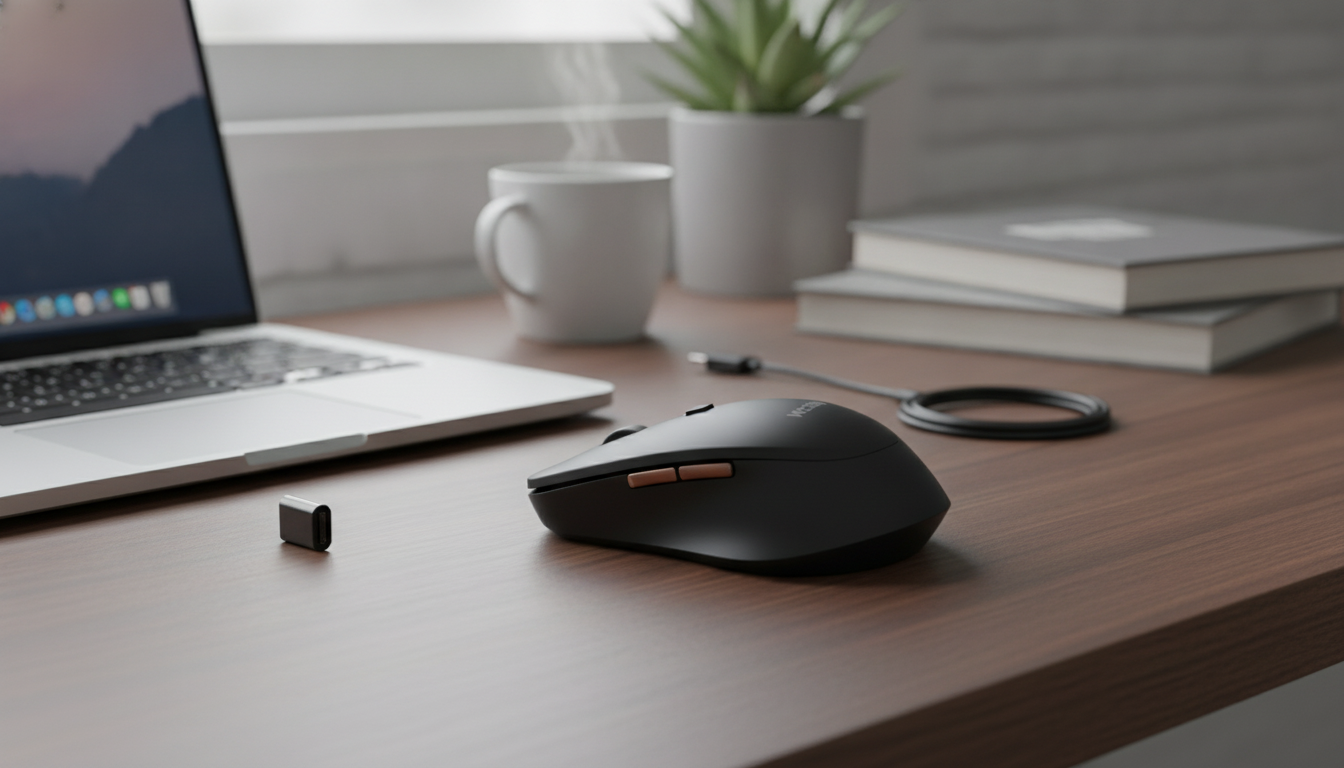
A compact 2.4GHz wireless mouse with a USB Type‑C receiver is a simple upgrade for modern laptops and tablets that have moved away from USB‑A ports. Instead of juggling adapters, you plug the USB‑C dongle directly into a compatible device and get reliable, everyday control for classes, commutes, and desk work. Below is what to expect from daily use, how the connection works, comfort considerations, and practical tips for steady tracking at home, at school, or on the go.
USB‑C laptops are increasingly common, but many wireless mice still ship with USB‑A receivers. A Type‑C receiver removes that extra step and keeps travel kits lighter and cleaner.
| Feature | What it means for daily use |
|---|---|
| Wireless band | 2.4GHz (generally stable for desks, classrooms, and travel) |
| Receiver type | USB Type‑C dongle (fits many newer laptops without adapters) |
| Setup | Insert receiver, power on mouse, start using (typically no driver needed) |
| Best use cases | Office work, studying, casual browsing, portable workstations |
A 2.4GHz USB‑C wireless mouse is a practical pick when convenience matters more than advanced gaming features. It especially suits setups where you want the mouse to “just work” every time you plug the receiver in.
Both 2.4GHz and Bluetooth are cable-free, but they behave differently day to day. A 2.4GHz mouse uses a small receiver (dongle) that handles the connection, while Bluetooth connects directly to the computer or tablet’s built-in radio.
USB‑C itself is a connector standard, not a guarantee of what a port can do. For a deeper look at USB‑C capabilities and ecosystem basics, the USB Implementers Forum is a helpful reference: USB-IF (USB Type‑C resources and specifications overview).
A mouse that connects easily is only half the win—comfort and control are what determine whether it stays in your bag long term. Subtle differences in shape and settings can reduce fatigue and make pointer movements feel more predictable.
If the pointer feels “too fast” on a high-DPI display, lower the cursor speed a notch and turn off any aggressive acceleration settings. If it feels “floaty,” try a slightly higher speed paired with shorter physical movements—especially helpful on compact travel desks.
Wireless “weirdness” is often plain interference rather than a defect. If you want a simple overview of how interference can affect electronics, NIST’s EMI background material is a solid starting point: NIST: Electromagnetic Interference (EMI) basics. For U.S. regulatory context around compliant wireless gear, see: FCC Equipment Authorization.
It can, as long as the tablet supports USB pointing devices via USB‑C/OTG or through a compatible USB‑C hub. Some tablets may require a certain OS version or a setting enabled, and the receiver must be connected through USB‑C.
Common causes include low battery, interference from nearby USB 3.0 devices or crowded hubs, poor receiver placement, busy wireless environments, or an inconsistent surface. Try moving the receiver to another port, repositioning it away from cables/drives, and using a mouse pad for steadier tracking.
Yes—these devices operate at low power under radio regulations and are generally safe for typical home, school, and office use. They may experience interference in busy environments, but that’s a performance issue rather than a safety concern.










Leave a comment